Install Emacs on Windows
Tags: #emacs #windows
Three steps lie ahead: download the archive, create an init.el configuration file, and — the detail that makes all the difference — configure the HOME environment variable, so that Emacs knows where to look for init.el.
Let’s download the .zip file containing Emacs from the FTP https://ftp.gnu.org/gnu/emacs/windows/ or from the mirror https://mirror.cyberbits.eu/gnu/emacs/windows/.
At the time of writing, the latest available version is 30.1. The file to download is therefore emacs-30.1.zip (159 MB).
Let’s unzip it into the directory of our choice, for example within C:/programs2/emacs-30.1/.
The subdirectories will then typically be:
C:/programs2/emacs-30.1/bin
C:/programs2/emacs-30.1/include
C:/programs2/emacs-30.1/lib
etc.
Let’s create a desktop shortcut pointing to C:\programs2\emacs-30.1\bin\emacs.exe, then double-click it. Emacs should launch.
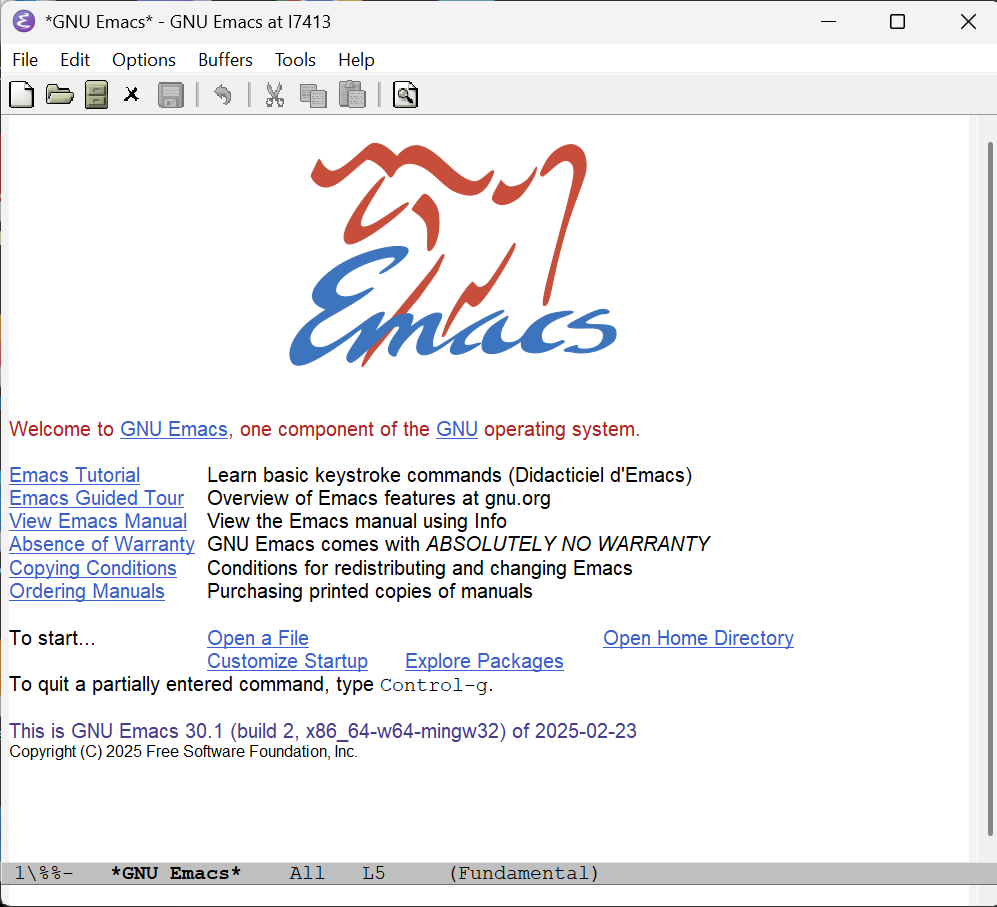
To close Emacs: File > Quit menu, or the keyboard shortcut Ctrl-x Ctrl-c.
At this stage, Emacs is installed. First milestone cleared.
One important step remains: telling Emacs where to place its future configuration file init.el.
By default, Emacs will look in the directory designated by ~, which under Windows points to a most unlikely spot — typically C:\Users\username\AppData\Roaming. Which is, let’s be honest, the last place anyone would pick for a file they’ll reopen thousands of times.
(The initiated can uncover this default directory via at least three methods: (i) (expand-file-name "~"), (ii) (getenv "HOME"), or (iii) M-x dired and type ~ directly after the proposed directory.)
Let’s suppose we want to store configuration files in the same directory as Emacs, namely C:\programs2\emacs-30.1\ — though nothing ties us to that choice.
Let’s create a Windows (user) environment variable named HOME with the content C:\programs2\emacs-30.1\.
Inside C:\programs2\emacs-30.1\, let’s now create a .emacs.d directory and, in it, an init.el file with the following content:
(message "Here is init.el file. Emacs version is %s" (emacs-version))Let’s close Emacs (File > Quit menu, or Ctrl-X Ctrl-C keyboard shortcut) and restart it.
No visible change should appear.
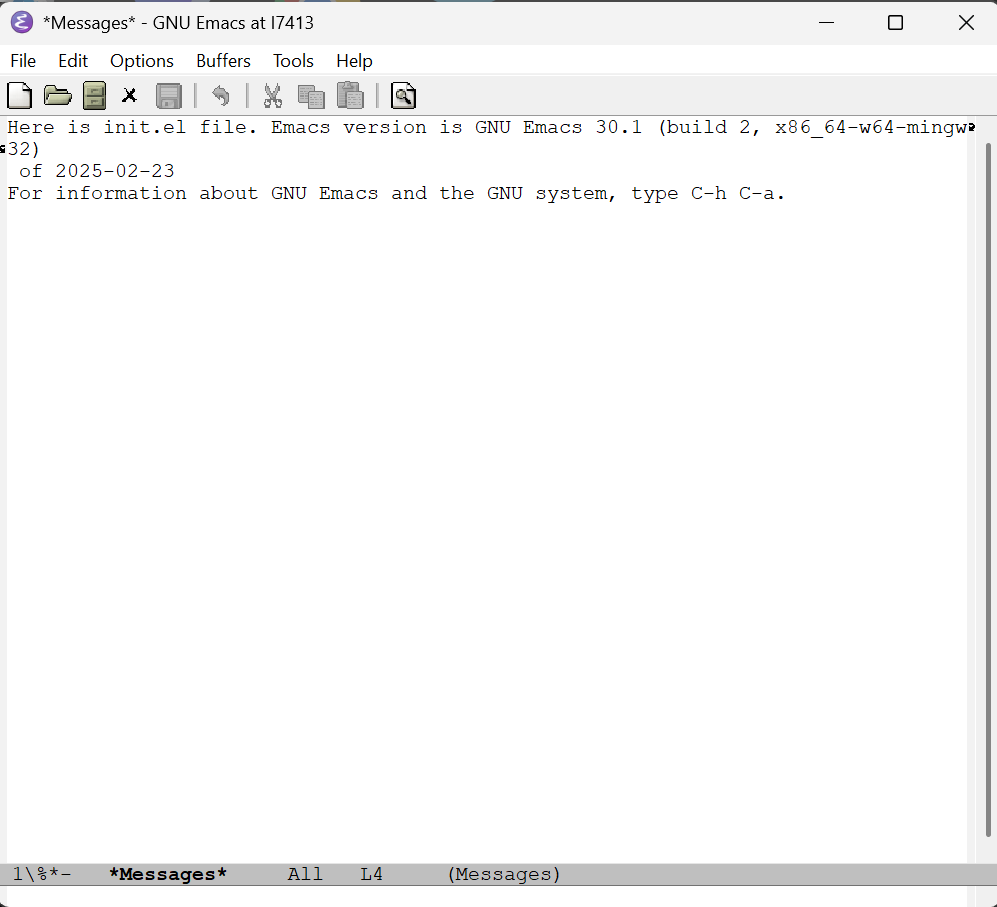
Let’s display the content of the Messages buffer — via the Buffers menu or the keyboard shortcut Ctrl-x Ctrl-b. The text should show:
Here is init.el file. Emacs version is […]
Proof that our init.el has been properly loaded.
This init.el file can hold every configuration instruction we might want. But that’s another story — or rather, the story of a lifetime spent tinkering.